آموزش

چطور مشکل ارسال پیامک طولانی سامسونگ را حل کنیم؟
How to solve the problem of sending long text messages on Samsung
اگر هنگام ارسال اس ام اس طولانی سامسونگ با مشکل مواجه شدهاید یا بخشی از پیام شما بهطور خودکار به پیام چندرسانهای (MMS) تبدیل میشود، نگران نباشید. در این مقاله بهصورت گامبهگام به شما آموزش میدهیم که چگونه تنظیمات گوشی را تغییر دهید تا بتوانید بهراحتی پیامک طولانی در گوشی سامسونگ ارسال کنید.
به گزارش «نبض فناوری»، به نقل از زومیت، گوشیهای سامسونگ بهصورت پیشفرض، اگر پیام متنی از تعداد مشخصی کاراکتر بیشتر شود یا حاوی کاراکترهای خاصی مثل ایموجی باشد، آن را به پیام چندرسانهای (MMS) تبدیل میکنند. این اتفاق میتواند باعث هزینههای بیشتر یا عدم دریافت صحیح پیام توسط برخی مخاطبان شود.
روشهای رفع مشکل ارسال پیامک طولانی سامسونگ
روشهای پیشرو میتوانند مشکل ارسال پیامک طولانی سامسونگ را بهسادگی برطرف کنند.
تغییر تنظیمات پیامک سامسونگ
رفع مشکل ارسال پیام طولانی از طریق تتنظیمات پیامک سامسونگ امکانپذیر است. برای این کار باید مراحل زیر را پیش ببرید:
- به اپلیکیشن Messages (پیامها) وارد شوید.
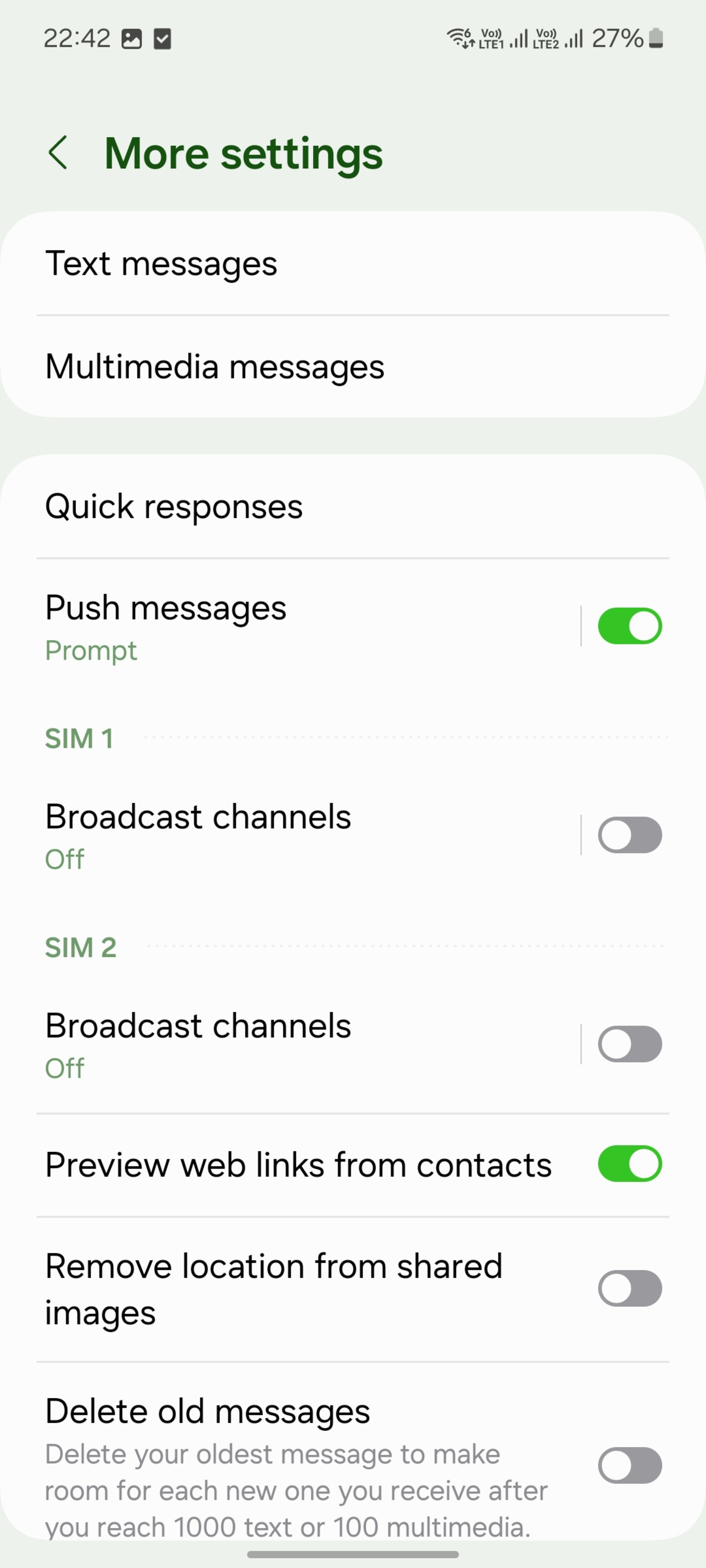
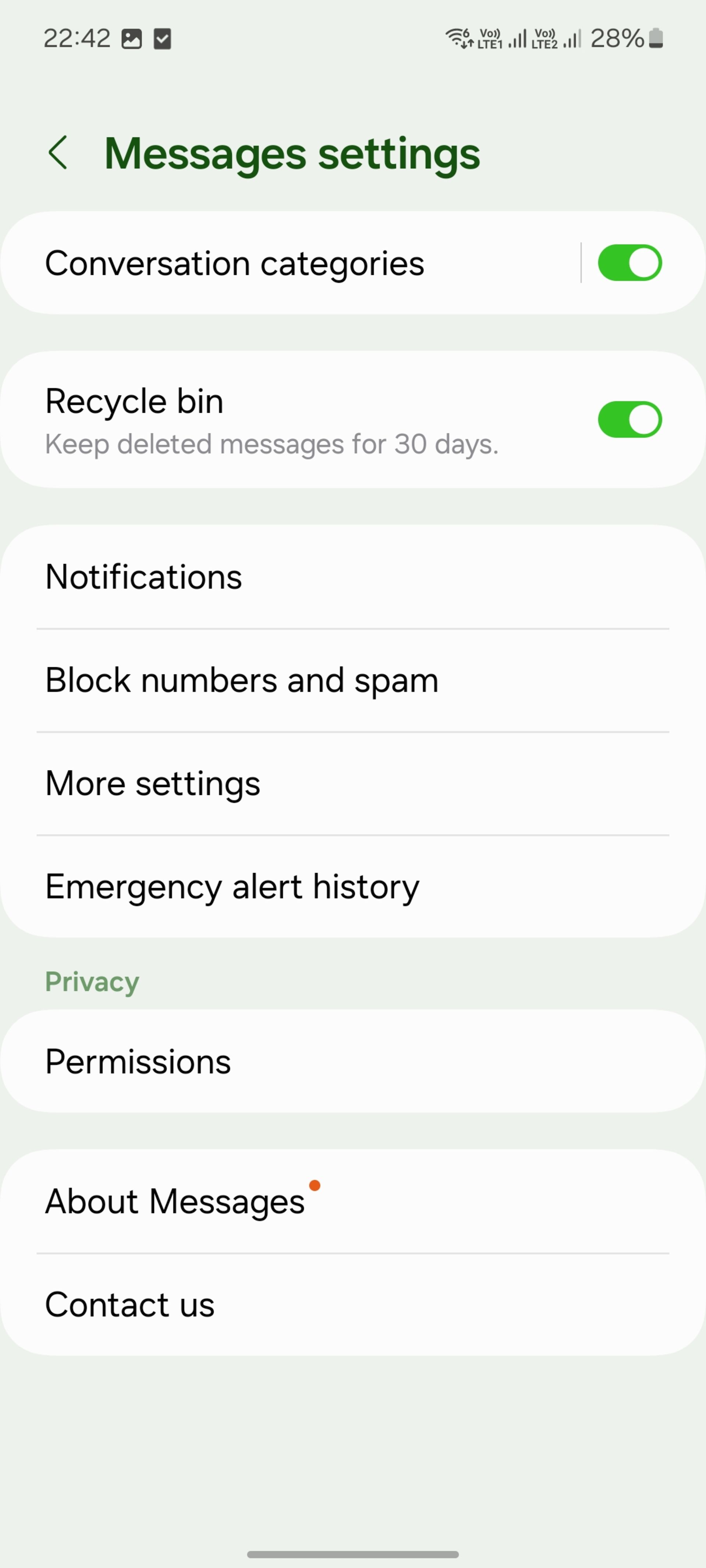
- روی منوی سهنقطه در بالا ضربه بزنید و گزینهی Settings (تنظیمات) را انتخاب کنید.
- به بخش More Settings (تنظیمات بیشتر) بروید.
- گزینهی Text messages (پیام متنی) را باز کنید.
- مطمئن شوید که گزینهی Input mode (زبان نوشتن) روی GSM alphabet (الفبای GSM) تنظیم شده باشد. این گزینه بهطور پیشفرض روی حالت Automatic (خودکار) قرار دارد.
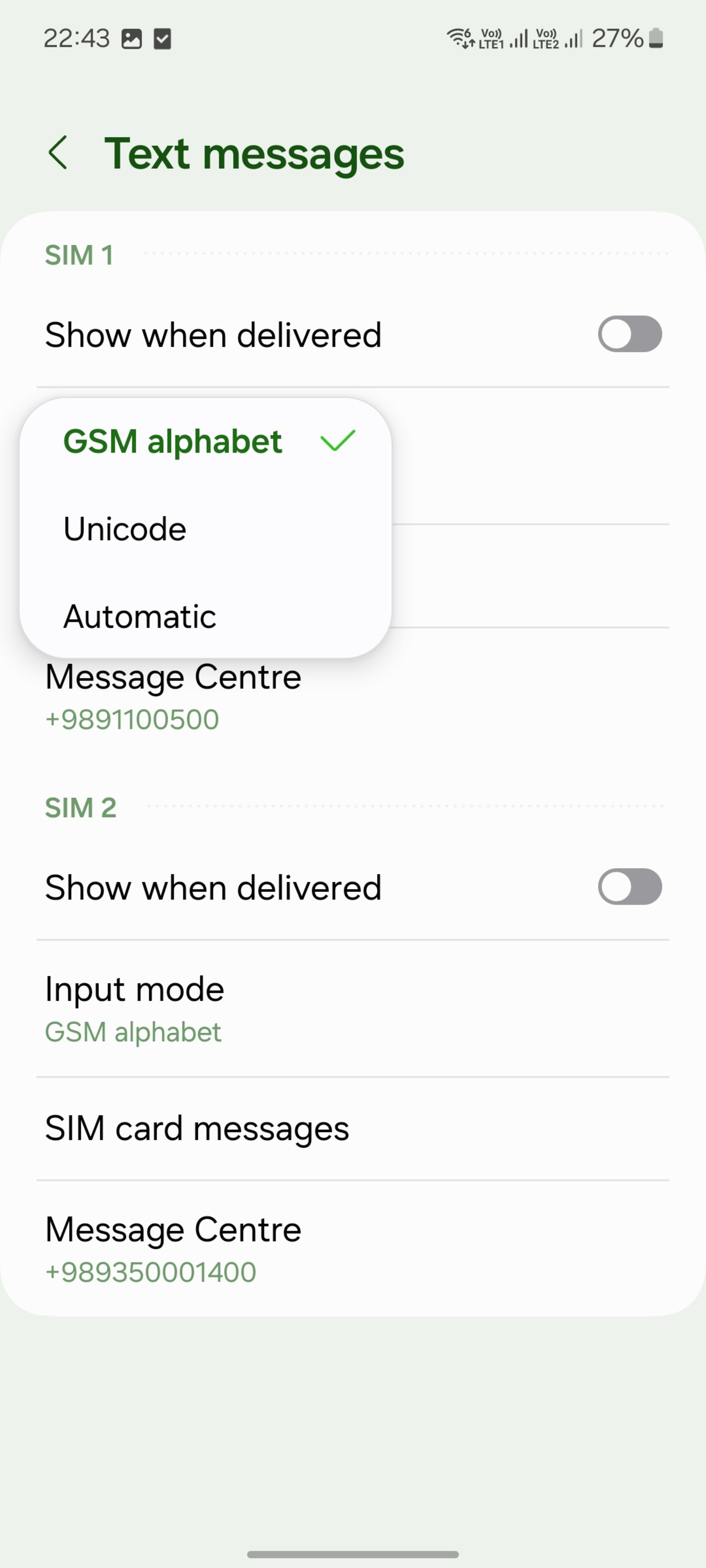
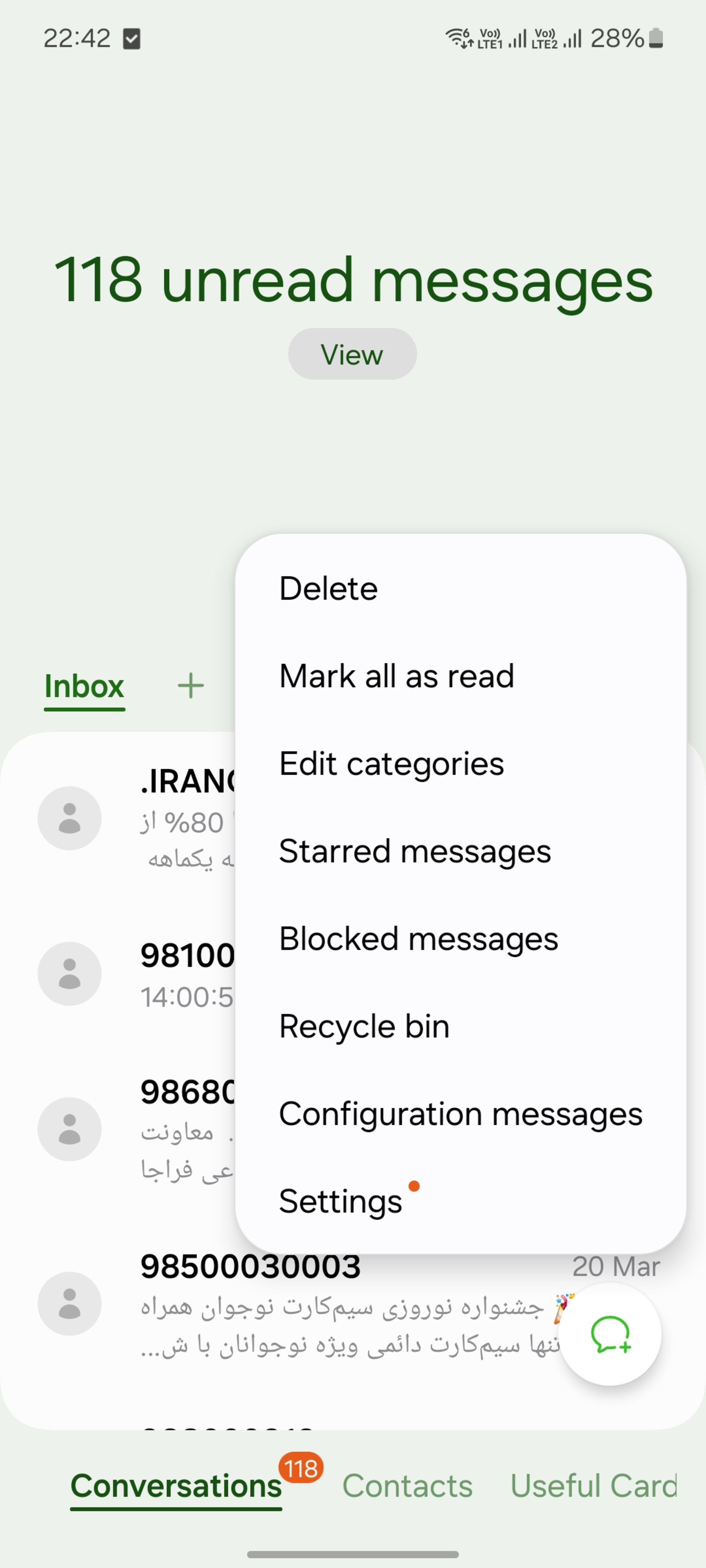
درصورتیکه زبان نوشتن روی Unicode باشد، ممکن است باعث تبدیل پیامک به MMS شود، مخصوصاً زمانی که قصد نوشتن پیامک طولانی در سامسونگ را دارید.
استفاده از اپلیکیشنهای جایگزین
اگر با اپ پیام پیشفرض سامسونگ مشکل دارید، میتوانید از اپلیکیشنهای جایگزین مانند Google Messages و Textra SMS و Chomp SMS استفاده کنید که مدیریت بهتری در ارسال پیامک طولانی در سامسونگ دارند.
How to solve the problem of sending long text messages on Samsung?
To send long text messages on a Samsung phone without them being split into multiple SMS messages or converted to MMS, you can either enable Chat features for Wi-Fi messaging or utilize a third-party messaging app like WhatsApp or Facebook Messenger. These options allow you to send longer messages without character limits.
Explanation:
1. Samsung’s Chat Features (RCS):
- Samsung Messages offers a feature called “Chat features” (Rich Communication Services or RCS) that allows you to send messages over Wi-Fi or data, similar to messaging apps like WhatsApp.
- To enable it, go to Settings > Messages > Chat settings > Chat features > On.
- Make sure the “Default message type” is set to “Automatic” or “Chat.”
- This will allow you to send longer messages to contacts who also have Chat features enabled, without the limitations of standard SMS.
2. Third-Party Messaging Apps:
- Apps like WhatsApp, Facebook Messenger, Signal, etc., utilize internet connectivity (Wi-Fi or data) and don’t have the same character restrictions as SMS.
- These apps are a good alternative for sending long text messages, especially when communicating with people who also use the same app.
3. Understanding SMS Limitations:
- Standard SMS messages are limited to 160 characters. If you exceed this limit, the message will be split into multiple SMS parts or converted to MMS.
- MMS (Multimedia Messaging Service) is designed for sending multimedia content (images, videos, etc.) and longer text messages, but it might incur additional charges depending on your carrier.
- Enabling Chat features or using third-party apps bypasses these SMS and MMS limitations.
Troubleshooting:
- If you are having trouble with messages being split or converted to MMS, you can try clearing the cache of the Messages app (Settings > Apps > Messages > Storage > Clear cache) or restarting your phone.
- You can also check your network settings and ensure that your SIM card is properly provisioned for MMS if you choose to use it.
